Looking for a fast and private way to remove duplicate lines from text?
This tool cleans your data instantly—directly in your browser, with zero
uploads.
How to Remove Duplicate Lines?
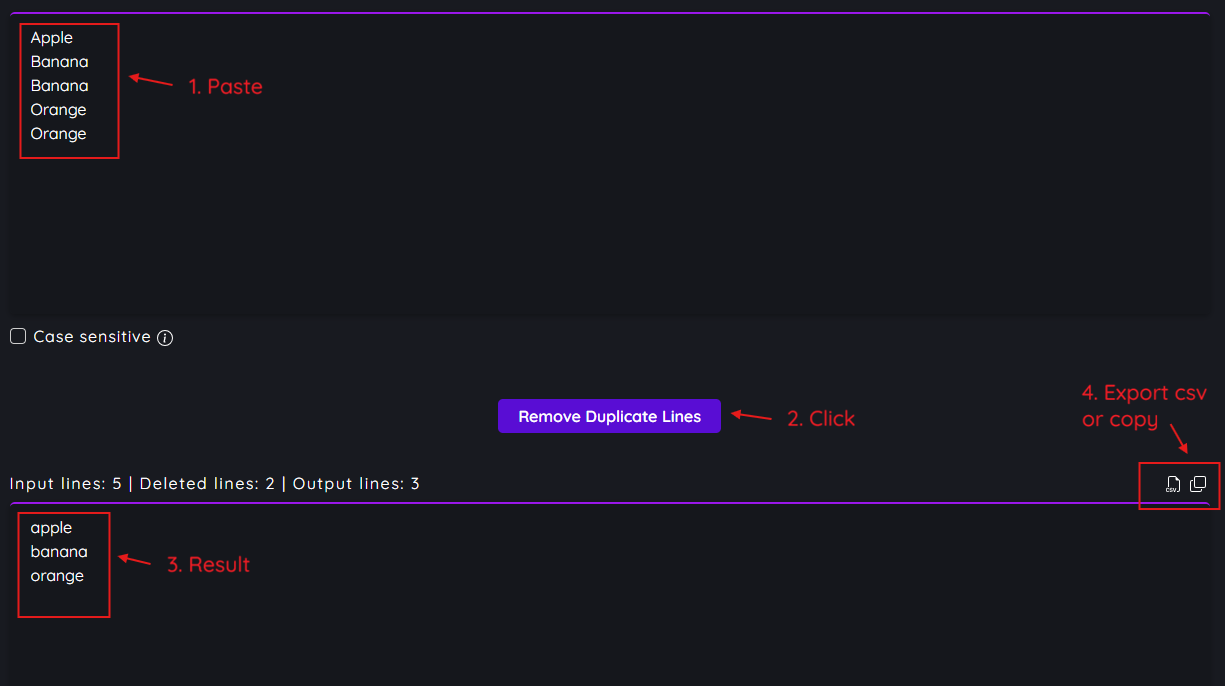
To remove duplicate lines, simply paste your text into the input area.
The tool automatically detects repeated lines and keeps only unique
entries in real time—no uploads or waiting.
Paste your text → duplicates are removed → copy clean output
Paste your text into the input field.
Click Remove Duplicate Lines.
The result updates instantly with duplicates removed.
Copy the result or download it as a .csv file.
🔒 Privacy Note: All processing happens locally in your
browser. No data is sent to our servers.
Case Sensitive vs Case Insensitive — What’s the Difference?
You can control how duplicate lines are detected by choosing between
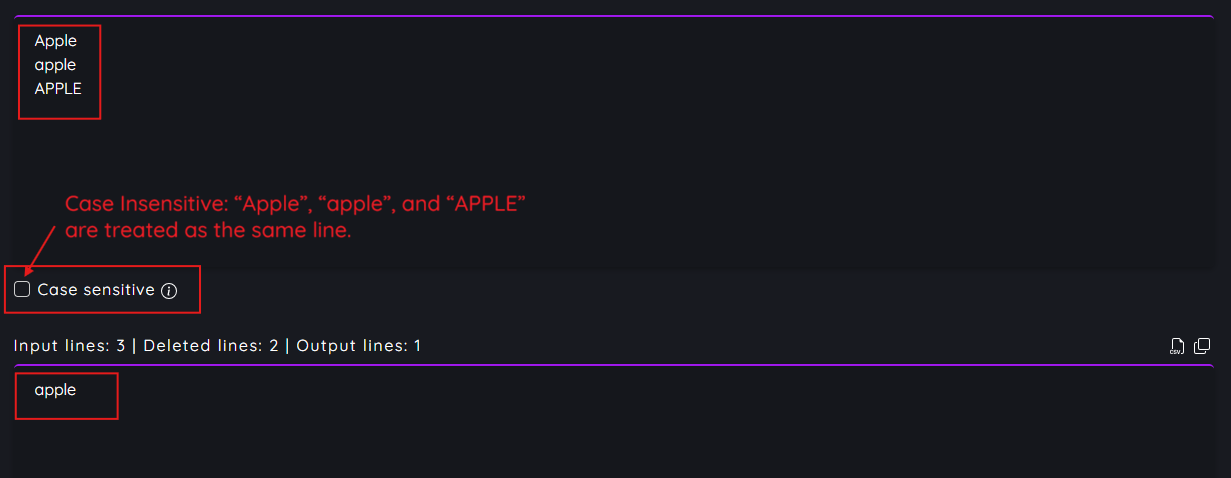
Case Insensitive (default) and
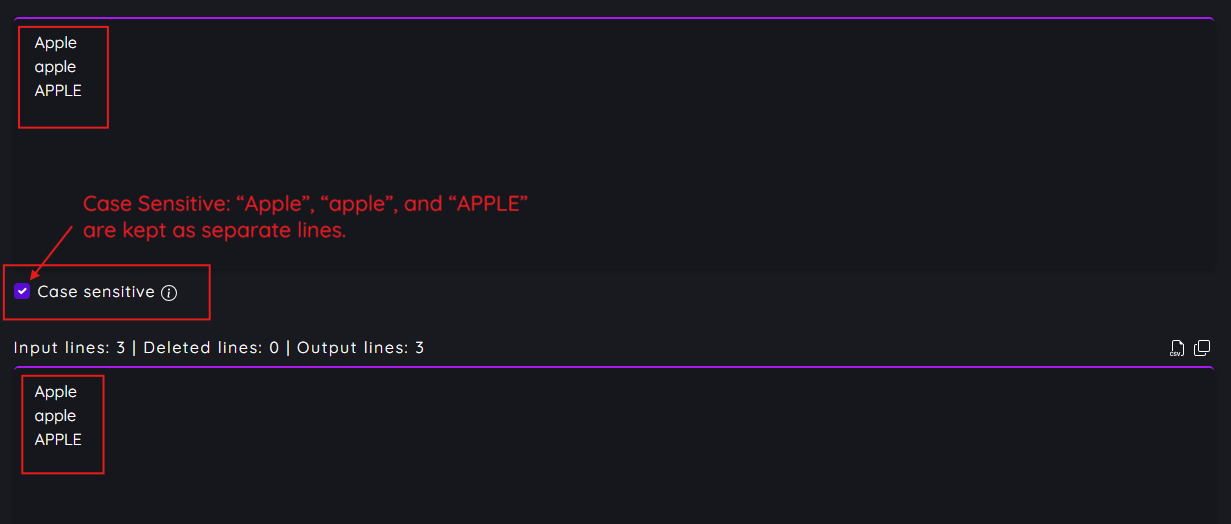
Case Sensitive modes. This determines whether letter
casing (A ≠ a) matters when removing duplicates.
Case Insensitive (default): “Apple”, “apple”, and “APPLE” are treated as
the same line.
Case Sensitive: “Apple”, “apple”, and “APPLE” are kept as separate lines.
Case Insensitive (default): Ignores letter casing when
detecting duplicates.
Case Sensitive: Treats uppercase and lowercase as
different values.
Ideal for code, usernames, IDs, or data where case matters.
Tip: Leave Case Insensitive enabled for most cleanup
tasks. Enable Case Sensitive only when required.
How to Check Duplicate Lines?
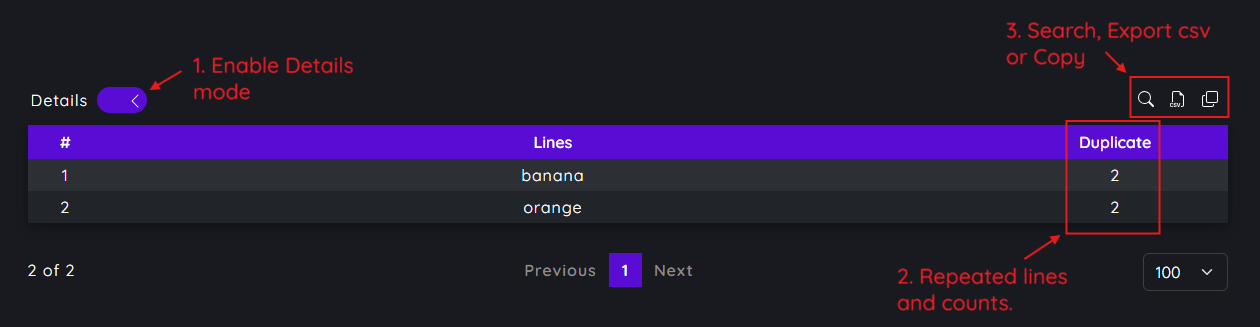
Switch to Details mode to analyze duplicates.
The tool highlights repeated lines and shows how often each appears.
Duplicate line frequency analysis view
Enable Details mode.
Paste your text to see repeated lines and counts.
Export or review duplicates individually.
What Are the Line Counts & Statistics?
After processing, the tool displays clear statistics so you understand
exactly what changed.
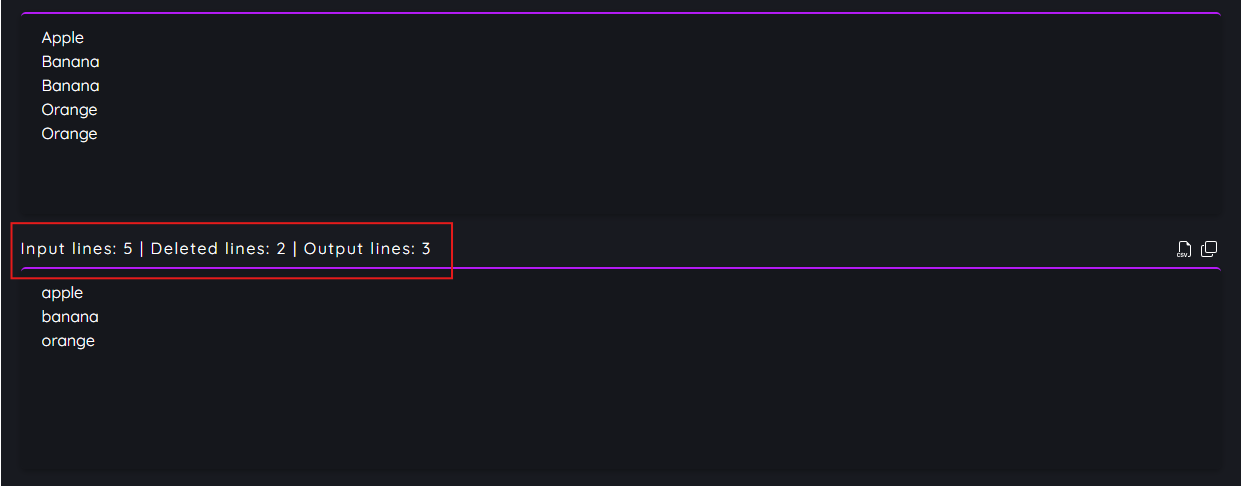
Input lines, removed duplicates, and final unique output
Input lines: Total number of original lines.
Deleted lines: Number of duplicates removed.
Output lines: Final count of unique lines.
Why Use This Tool?
Built for speed, privacy, and simplicity—no unnecessary features or
hidden limits.
Instant results: Processes thousands of lines in
milliseconds.
100% private: Client-side processing only.
Format-friendly: Works with text, CSV, logs, JSON, and
spreadsheet exports.